Help and setup guide
Vaulted Downloads sells digital files from your own encrypted storage. This guide walks through connecting your Cloudflare R2 bucket, adding files to a product, how buyers get their downloads, and the limits and licence options you can set. Each step takes a few minutes. If you get stuck, use the form at the bottom and we will help.
1. Choose where your files are stored
You have two ways to store the files you sell, and you pick one by choosing a plan. Either way the app encrypts every file before it is stored, so the bytes are never kept in the clear and only a buyer's signed, time-limited link can open them.
| Option | What it means | Who it suits |
|---|---|---|
| Hosted storage | We store your files for you. There is nothing to set up, and your plan sets how much you can store. | Most merchants. The quickest way to start. |
| Bring your own storage | Your files stay in your own Cloudflare R2 bucket. You connect it once in Settings, and there is no storage charge from us. | Merchants who want the files in storage they own, or who have a lot of data. |
Not sure which to pick? The plans page explains what each plan includes and has a short calculator that suggests one.
Hosted storage: nothing to set up
On a hosted plan (Free, Standard, Plus or Pro) your files are stored for you. You can go straight to adding files to a product (section 2). Every file is encrypted and kept separate from every other store, and downloads are always unlimited. Your plan sets how much you can store, and if you reach the limit you can upgrade or remove some files.
Bring your own storage: connect your Cloudflare R2 bucket
On the Bring your own storage plan your files live in your own Cloudflare R2 bucket, not on our servers. R2 is Cloudflare's object storage, a bit like a private folder in the cloud. It is a good fit for selling files because it does not charge egress fees, so delivering large downloads does not add a surprise bill.
Set it up
- In Cloudflare, create an R2 bucket (for example
my-shop-downloads) and an R2 API token with read and write access to it. - In the app, open Settings and paste your Account ID, Access key ID, Secret access key, and bucket name into the storage fields. Each field has a "where to find this" note beside it.
- Save. The app checks the connection and encrypts the keys before storing them, so they are never kept in the clear.
Settings reference
| Field | What it is | Where to find it |
|---|---|---|
| Account ID | Identifies your Cloudflare account. | Cloudflare dashboard, R2 overview page |
| Access key ID | The public half of your R2 API token. | Shown once when you create the R2 API token |
| Secret access key | The private half of the token. Treated as a secret and encrypted. | Shown once when you create the R2 API token |
| Bucket name | The bucket the app reads and writes your files in. | The name you gave the bucket in R2 |
2. Add files to a product
A product delivers whatever files you attach to it. Attaching a file uploads it straight into your storage, encrypted on the way, so it is never stored or sent in the clear.
Add the Downloads block to the product page
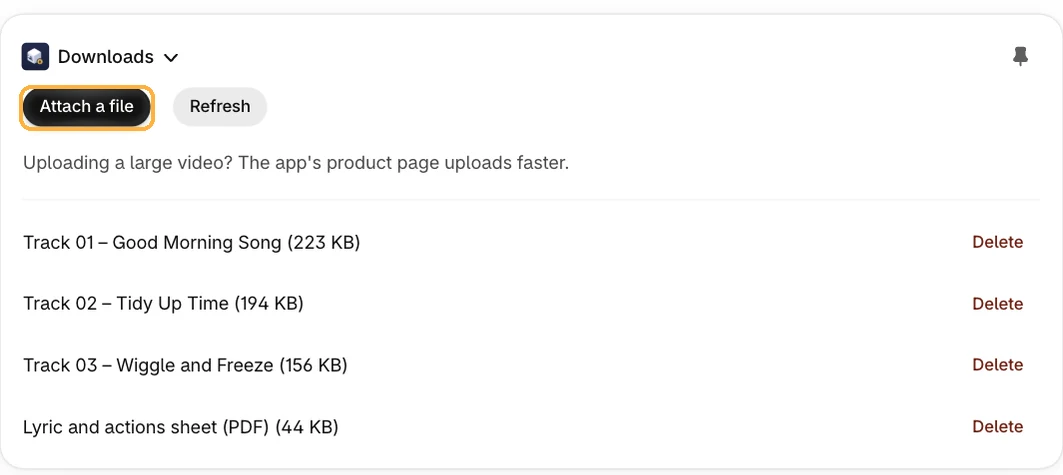
The Downloads block comes from Vaulted Downloads and shows on the product page in your Shopify admin. Before you can attach any files, you need to add the block to the page and pin it, so it stays there. You only do this once, and then it is ready on every product.
- In your Shopify admin, open Products and choose a product.
- On the product page, add the Vaulted Downloads block, then pin it so it stays. Pinning matters: an unpinned block can disappear when you leave the page, and then there is nowhere to attach your files.
Attach your files
- Open the product in your Shopify admin and find the Downloads block you pinned.
- Upload one or more files. You can give each a clear label, which is what the buyer sees on their download page.
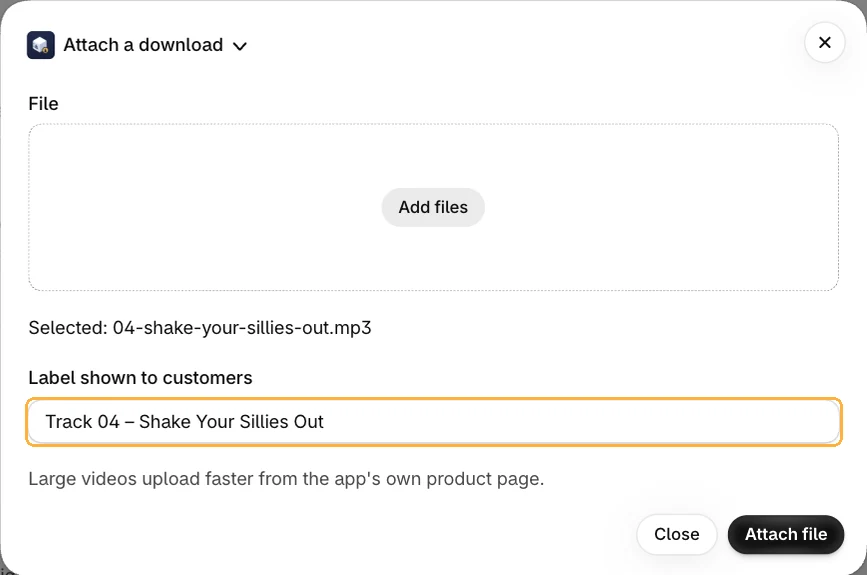
Choose a file and set the label buyers will see. - Set a download limit or expiry on a file if you want it to differ from your store defaults (see section 4), then save.
How it works
The list of files for a product is stored as an encrypted, app-owned metafield on your store. The file bytes sit in storage as ciphertext, whether that is our hosted storage or your own bucket. Nothing a buyer could read is ever public, and nothing about the buyer is stored by the app.
3. How buyers get their downloads
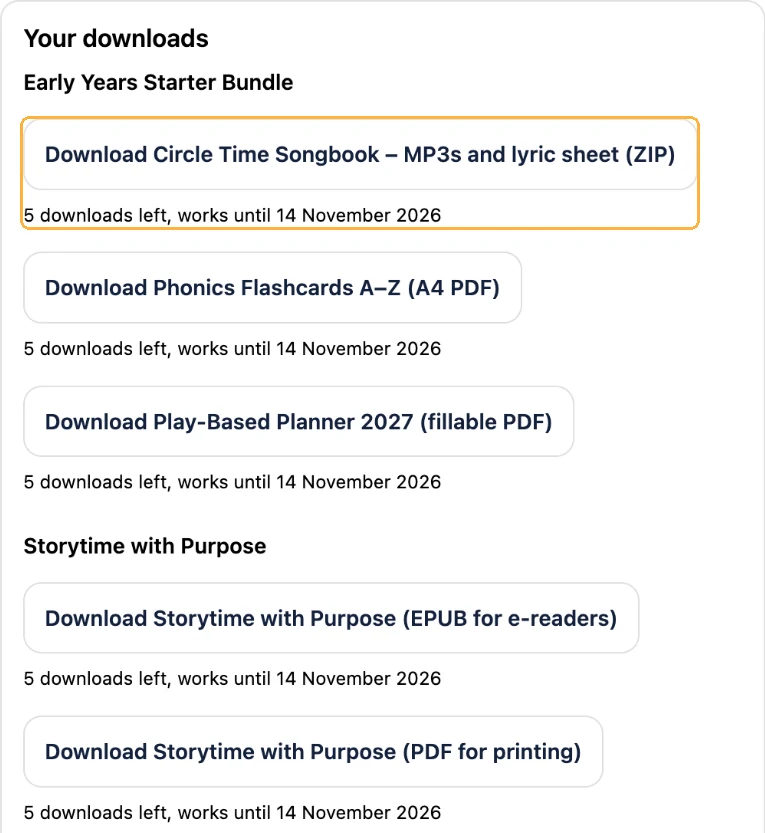
After a buyer checks out, Vaulted Downloads shows their download links in every place Shopify shows the order, so they never have to hunt for an email.
Where the links appear
| Place | What the buyer sees |
|---|---|
| Order confirmation email | A link back to their downloads, added with a small snippet you paste once. |
| Thank-you page | A "Your downloads" block right after checkout. |
| Order status page | The same block, so they can come back to it later. |
| Customer account | A "My downloads" page listing the files from all of their orders. |
Add the blocks and page to your store
The thank-you page, order status page and customer account are turned on in Shopify's own editors. You only do this once, and each one takes a minute.
Thank-you and order status pages
- In your Shopify admin, go to Settings, then Checkout.
- Next to your live checkout, click Customize. This opens the checkout and accounts editor.
- At the top of the editor, use the page menu to switch to the Thank you page.
- Click "Add app block", choose "Your Downloads", then drag it where you want it to show.
- Use the page menu to switch to the Order status page and add the same block.
- Click Save.
The "My downloads" page in customer accounts
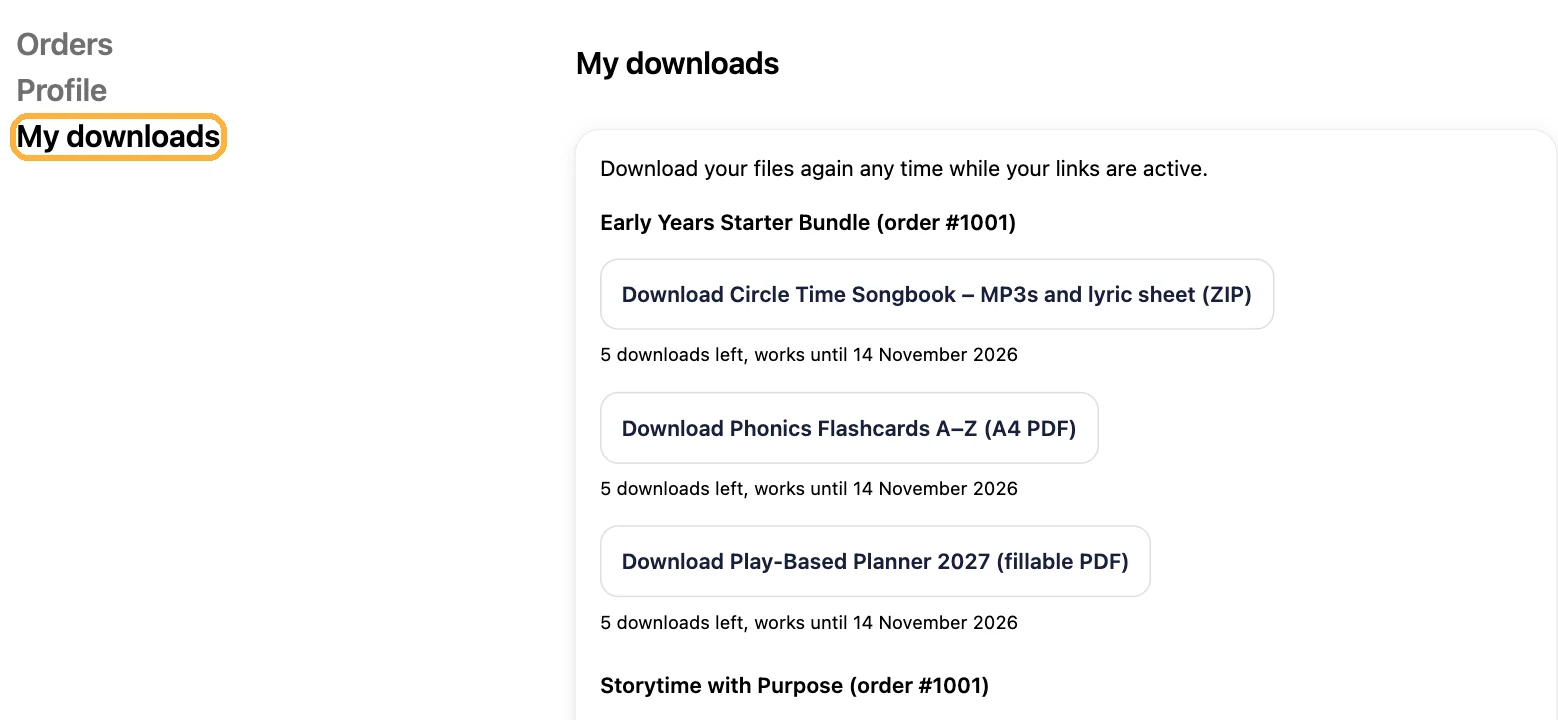
- In the same editor, add the "My downloads" page from your apps. Adding the page here is the important part: a menu link on its own is not enough, so adding only a link leaves the page with nothing to show.
- When the editor offers to add a link to the page in the customer account menu, say yes so buyers can find it.
- Click Save to publish it to your live customer accounts.
One order, or all of them
If an order has more than one product with downloads, they all appear together in the same block, each product listed with its own files. The thank-you page and the order status page always show the files for that one order.
The "My downloads" page in the customer account is the exception: it brings together the files from all of a buyer's orders in one list, each labelled with its order number, for example "Phonics Pack (#1002)". So a returning buyer sees everything they have bought in one place. To see it they need to be signed in to their account. Guests still get their files from the order confirmation email, the thank-you page and the order status page for each order.
Test it on your store
- Place a test order for a product that has files attached.
- Open the thank-you page and confirm the downloads block appears.
- Press Download and confirm the file opens, then check the count went down by one.
- Open the order status page and the customer account and confirm the links are there too.

4. Limits, expiry and the PDF licence footer
You decide how long links last, how many times a file can be downloaded, and whether your PDFs carry a licence footer. Set store-wide defaults in Settings, and override them on an individual file when you need to.
Settings reference
| Setting | What it does | Default |
|---|---|---|
| Download limit | How many times a buyer can download a file before the link stops working. | Your store default |
| Link expiry | How many days a download link keeps working after the order. | Your store default |
| PDF licence footer | Adds a small footer to every page of a PDF at download time. | On for PDFs |
| Include buyer details | Adds the buyer's name and order number to the PDF footer. Read at download time, never stored. | Off |
How the licence footer works
When a buyer downloads a PDF, the app adds a footer to each page as the file streams out. The original file in your bucket is never changed. If you turn on buyer details, the footer names the order it belongs to, which gently discourages sharing.

Reset or revoke a buyer's downloads
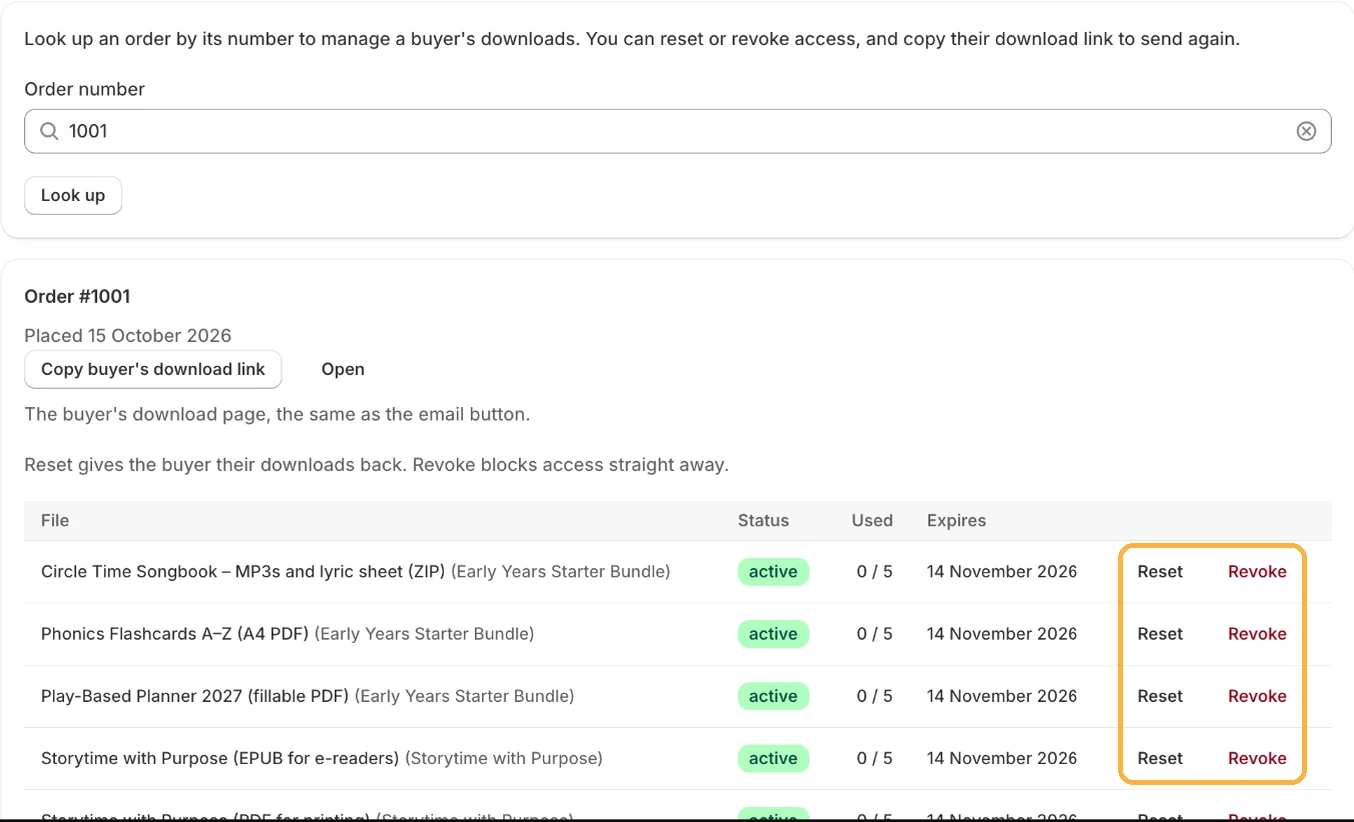
Open the app's Orders page and look up the order number. Reset gives the buyer their downloads back. Revoke blocks access straight away.
Still need a hand?
Send us a message and we will reply by email, usually within one business day. You do not need to be signed in.
Frequently asked questions
- Where are my files stored?
- Wherever you choose. On a hosted plan we store them for you, with nothing to set up. On the Bring your own storage plan they stay in your own Cloudflare R2 bucket. Either way the app encrypts every file before it is written, so the bytes are never stored in the clear, and only a buyer's signed, time-limited link can open them.
- Do I need my own Cloudflare account?
- Only if you want one. On a hosted plan there is nothing to set up, we store your files for you. If you would rather keep the files in storage you own, choose the Bring your own storage plan and connect your own Cloudflare R2 bucket in Settings.
- What does it cost to store and deliver files?
- There are never any bandwidth fees for delivering downloads. On a hosted plan your storage is included in the plan price, up to the plan's limit. On the Bring your own storage plan you pay Cloudflare directly for your R2 bucket, and R2 does not charge egress fees. See the plans page for what each plan includes.
- Which plan should I choose, and is there a free trial?
- There is a free plan to start, and every paid plan comes with a 7-day free trial. Hosted plans differ by how much storage is included. If you would rather use your own Cloudflare storage, choose Bring your own storage. The plans page has a short calculator that suggests a plan from the amount of storage you need.
- Can buyers share their download link?
- Each link is signed and tied to a single order and file. You set how many times it can be used and how long it works for, so a shared link stops working once it hits your limit or expires.
- How do buyers get their files?
- Download buttons appear on the order confirmation email, the thank-you page, the order status page, and in the customer account, so buyers always have a way back to their files.
- What happens if I refund or cancel an order?
- Access is revoked automatically. The buyer's links stop working, so a refunded or cancelled order can no longer open the files.
- What file types can I sell?
- Any file: PDFs, images, audio, video, zip archives, and more. PDFs can also get a licence footer added to every page at download time.
- Do you store my customers' personal data?
- No. The app keeps none of your customers' personal information. When a feature needs a buyer detail, such as a name on a PDF footer, it is read from Shopify at download time and never stored.